
New Features
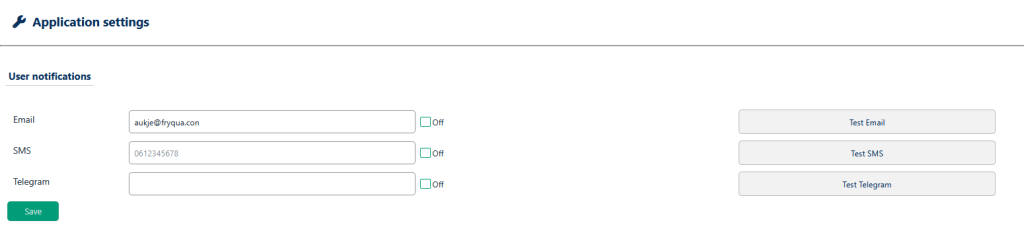
Test buttons: Notifications can be forwarded to users in several ways, for example by email. New test buttons have been added to the notification settings, allowing users to send test messages while configuring notifications.
Username in incidents: When an incident is detected, the notification now reports not only which process caused it, but also the user account under which the process was started.
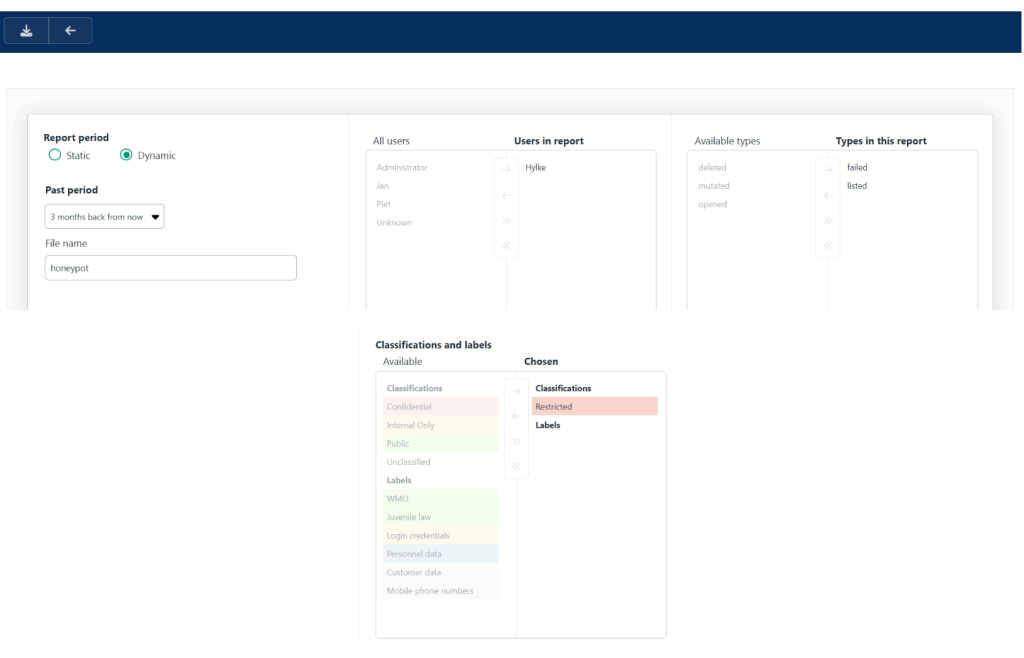
Report by filename: When generating a report, users can now filter by a filename or a (partial) path. The report will include entries matching the filenames or paths entered by the user.
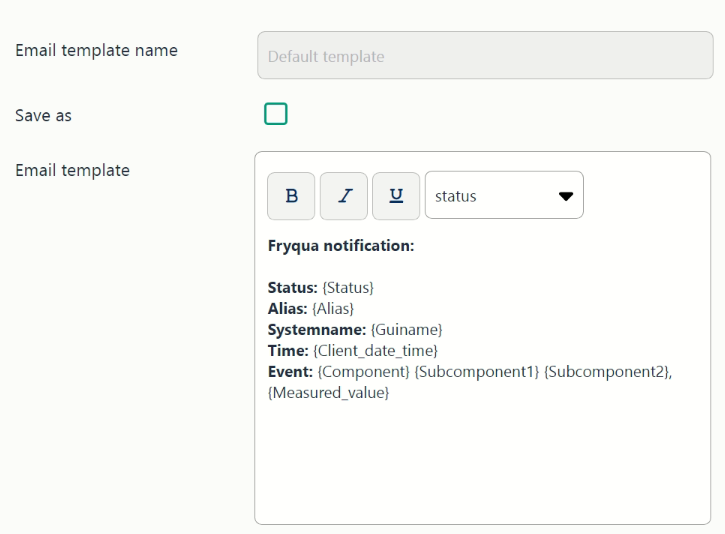
New email template added: A new email template is available, allowing users to create their own email layout. The template supports variables such as time, status and measured value. A default template is included.
Fixes and improvements
Security:
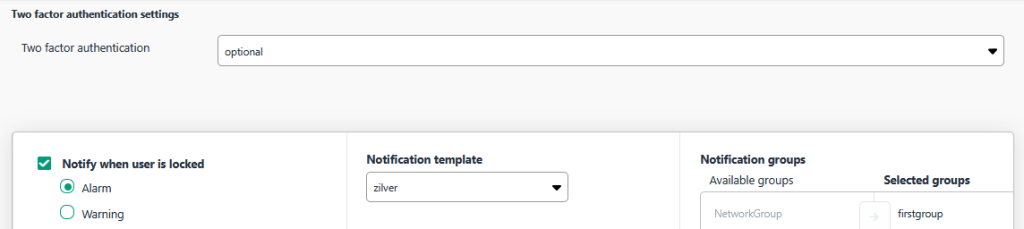
- If a Fryqua user is blocked due to too many failed login attempts, a notification can be sent. This functionality now also works when 2FA is not mandatory.
- When logging in to Fryqua with 2FA, the time allowed to enter the code has been extended.
Active directory:
- In AD templates in the SUM, custom settings can be configured for all available attributes. Each attribute can be assigned an alias. In this version, these aliases are now displayed in email notifications. If no alias is defined, the official attribute name is displayed.
- AD templates can now also be modified when no Active Directory is being monitored yet.
Reports:
- A report can be generated from “All Events”. Reports can be customised based on date range, users involved and notification type. The time format used in the report name has been changed from 12-hour to 24-hour notation.
- A report can be created from “All Events”.
Notifications:
- A button has been added to the “Notifications” screen to display the measured value either as a row or as a column.
- Notifications now display “deleted” when a filename has disappeared from a folder.
- A single notification can now be sent to multiple email addresses.
- Changes to user notification settings for email, SMS and Telegram are now stored in the database.
- Notification settings can be configured in the user’s own account and in the SUM under Users and Admin/Notifications. All saved settings are displayed in the user table under SUM/Admin/Notification Settings.
- In the “Admin” menu, the default port under “Email Server Settings” is now set to 587 instead of 0.
Dashboard:
- Dashboard items without data are now displayed with a header and the message “No data”.
- When creating dashboard items, the maximum name length is now set to 50 characters.
Agent services: Creating a ZIP file of the agent is now more user-friendly in “Agent Services”. This functionality helps the helpdesk investigate issues, problems and questions.
SUM /Admin: When creating a backup, the backup is saved to the folder specified under SUM/Admin/Backup. If this folder is inaccessible, the backup is now saved to the Fryqua Data folder by default.
User interface:
- In the NUM, under “Agent / Cloud Settings”, users can search through all events for an agent or cloud service. By entering a search string, all events for that agent or cloud service containing the string are displayed. The interface for this functionality has been improved.
- In various parts of Fryqua Data, a “time frame” can be set, for example when generating reports or filtering events within a specific period. Time values in these time frames can now be entered more precisely.
- When modifying a “Notification Template”, users are no longer required to save it under a different name.
- For greater ease of use, multiple save buttons are now available when changing “Personal Settings”. The status message “Changes have been saved” appears next to the button that was used, rather than at the top of the screen.
- Improved log information in the “Copy Settings” screen.
- The search function in “Copy Settings” has been refined.
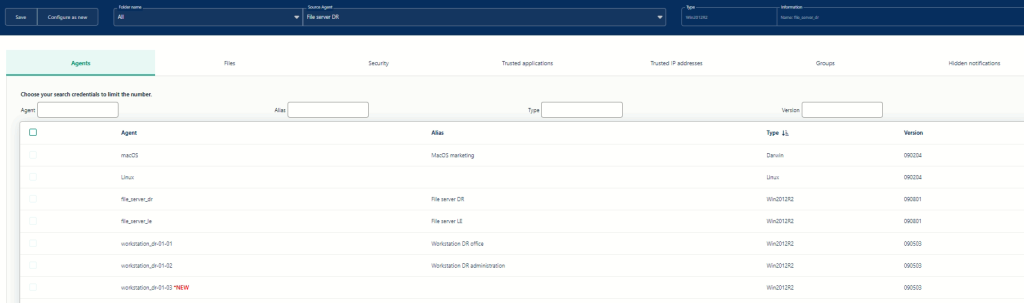
- Navigation and orientation have been improved in areas including SUM/Clouds and Admin.
- Empty values in tables are now displayed consistently as “–”.
- The maximum length of a notification template name is now set to 100 characters.
- Login page: The password field can now be made visible by clicking the eye icon. The login page also reloads with the latest “Did you know?” content.
- Textual and stylistic improvements have been made to provide a clearer and more consistent user experience, including in notifications, reports and Copy Settings.